Mindiaries
No Result
View All Result
hu Magyar ro Română en English
  • Marketing and Media
  • Reading Corner
  • Movies & Books
  • Finance
  • Society
  • Mental Health
  • Pop Culture
  • Beauty
  • Contact
  • Marketing and Media
  • Reading Corner
  • Movies & Books
  • Finance
  • Society
  • Mental Health
  • Pop Culture
  • Beauty
  • Contact
No Result
View All Result
Mindiaries
hu Magyar ro Română en English
No Result
View All Result

What is Google Search Console – Complete Beginner’s Guide (2026)

by Szandi
March 22, 2026
in Marketing and Media
0
Share on Facebook
Home › SEO & Google Tools › What is Google Search Console?
📊 Google Tools Series - Part 1
SEO & Google Tools

What is Google Search Console and what is it for?

First steps in Google Search Console, verifying your site and understanding the dashboard - in plain language, step by step. If you want to know how Google sees your website, this article is for you.

Contents
  • 01What is Google Search Console?
  • 02What it's for - concrete examples
  • 03GSC vs. Google Analytics
  • 04Verification step by step
  • 05The dashboard explained
  • 06Understanding the data
  • 07What to do first?
  • 08Frequently asked questions
⏱️ Reading time: approx. 12 minutes

Google Search Console is one of the most useful free tools you can use as a website owner - and yet most people either don't know about it, or they add their site and never open it again. This article shows you exactly what it is, how to set it up, and what you see inside once you're in.
Google Search Console

Google Search Console is available at search.google.com/search-console - you can register for free with a Google account.

What is Google Search Console?

Google Search Console (abbreviated: GSC) is a free tool maintained by Google for website owners. The idea is simple: it shows you how Google and users see your website during a search query.

Specifically, GSC answers the following questions:

Which keywords do you appear for?
You can see exactly which search terms Google finds your website for, and how many times you appear in results.
How many clicks are you getting?
You can see how many users actually click through to your site from Google results, and which page brings in the most visitors.
What technical errors exist?
GSC alerts you if your pages have problems - for example, they won't load, contain broken links, or Google can't index them.
Is your site indexed?
You can check whether Google has found your pages and added them to its search database at all.
Good to know

Before 2015, Google Search Console was known as Google Webmaster Tools. If you see this old name somewhere, it refers to the same tool. Today it's referred to as GSC or Search Console.

What is Google Search Console for - concrete examples

Instead of abstract definitions, let's look at the specific situations where GSC helps:

Example 1 - Why am I getting no organic traffic?

If you have a website but almost nobody finds it through Google, GSC shows you whether the problem is at the indexing stage (Google can't find your pages), with the keywords (you appear in searches but at bad positions), or with the click-through rate (you have a good position but nobody clicks).

Example 2 - Traffic suddenly dropped on a page

If the traffic to a specific blog post or subpage has dropped suddenly, GSC shows you which keywords that page was appearing for previously and at what position - so you can see exactly what changed.

Example 3 - Getting new content indexed

If you've published a new article, with GSC's URL Inspection tool you can request Google to index the page, instead of waiting weeks for Googlebot to find the new URL on its own.

16 months of historical data stored by GSC
$0 completely free - no paid version exists
2-3 days until first data appears after verification

GSC vs. Google Analytics - what's the difference?

This is one of the most common questions: if I already have Google Analytics, why do I need Search Console too? The two tools measure completely different things, and both are necessary.

What does it look at?Google Search ConsoleGoogle Analytics 4
FocusWhat happens BEFORE the clickWhat happens AFTER the click
Data sourceGoogle search engine dataWebsite behavioral data
KeywordsYou can see them exactlyYou can't see them - "not provided"
Technical errorsIndexing and speed-related errorsDoes not show technical errors
User behaviorDoes not show user behaviorPage views, conversions
Historical data16 monthsDepends on retention settings
Tip

GSC and GA4 can be connected to each other - a separate article in this series will cover that. After connecting them, you'll also be able to see search data inside GA4, giving you a much more complete picture of your visitors' journey.

Verification step by step

Google Search Console only shows data once you prove that the website actually belongs to you. This is called verification (or ownership confirmation). There are several methods available. The most common ones are shown below:
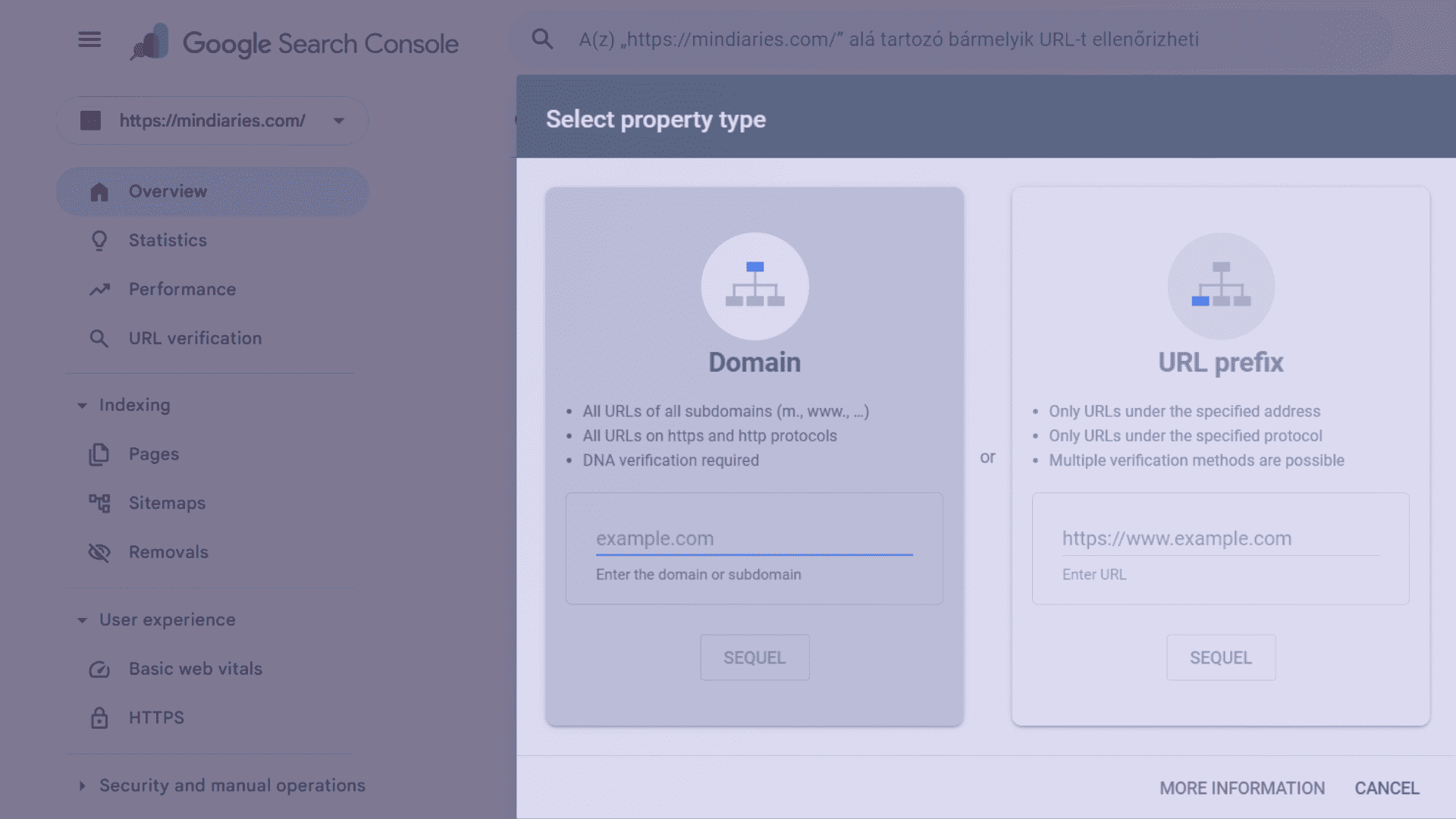
Google Search Console – Add property

The first step: choose whether you're adding a Domain property or a URL prefix property. Where possible, Google recommends the Domain version.

1
Open Search Console and click "Add property"

Go to search.google.com/search-console and sign in with the Google account you want to use to manage your website.

2
Choose the property type

Domain property (recommended): covers the entire domain (e.g. mindiaries.com), including the www and non-www versions, and both http/https variants. URL prefix: covers only a specific URL (e.g. https://mindiaries.com).

3
Verify with a DNS record (for Domain property)

If you chose Domain property, Google provides a TXT record that you need to add at your domain registrar (e.g. GoDaddy, Cloudflare, Namecheap). This is the most reliable method and also covers all subdomains.

4
Alternative: HTML tag in the page (for URL prefix)

If you chose URL prefix, the simplest method is the HTML tag: Google gives you a meta tag that you insert into the <head> section of your website. On WordPress, the Yoast SEO or Rank Math plugin handles this for you without any code.

5
Click "Verify" and wait

Verification usually happens immediately with a DNS record, and within a few minutes with an HTML tag. After that, you need to wait 2-3 days for the first data to appear.

Warning

If you accidentally delete the DNS record, Google loses the verification and data collection stops. Always make sure DNS settings are saved before modifying anything at your domain registrar.

The dashboard - what you see after logging in

If you're entering GSC for the first time and your domain has been verified for a few days, you'll be greeted by a screen like this:

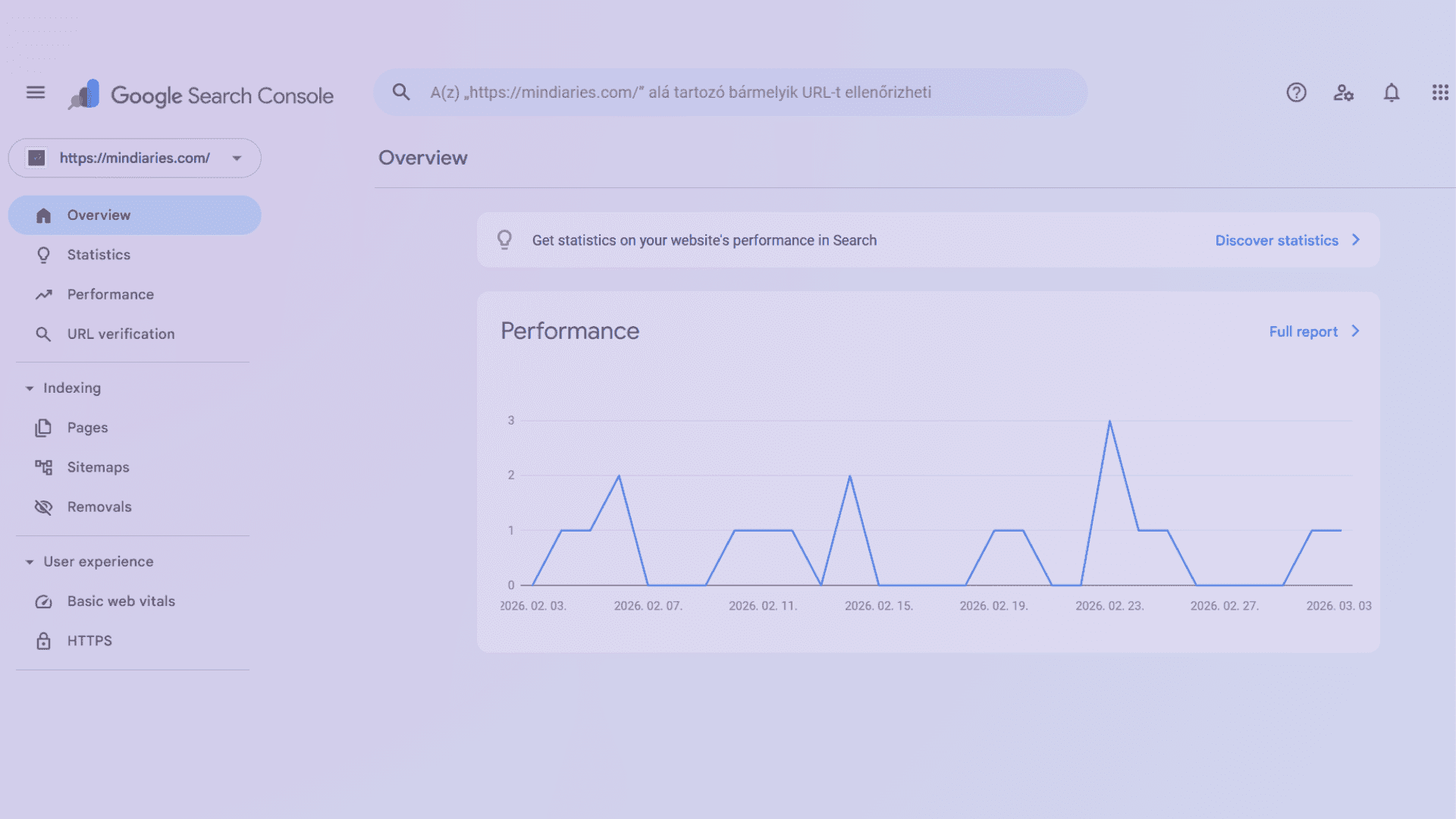
Google Search Console

The GSC Overview screen divides data into three main blocks: performance, indexing, and page experience.

In the left-hand navigation menu you'll find the following main sections:

Overview
The summary overview screen - a quick look at performance, indexing status, and page experience metrics.
Performance
Detailed search performance data: clicks, impressions, CTR and average position broken down by keywords and pages.
URL Inspection
Check the indexing status of a specific URL and request indexing or re-indexing.
Indexing
Shows how many pages Google has indexed, which ones it hasn't, and why. You can also submit a sitemap here.
Experience
Core Web Vitals data (page load speed and stability metrics) and mobile compatibility checks.
Links
Shows which external sites link to you (backlinks) and what internal links exist within your site.

Understanding the data - what does it mean exactly?

The GSC Performance report contains 4 main metrics. Many people confuse them, but it's important to understand exactly what each one measures:
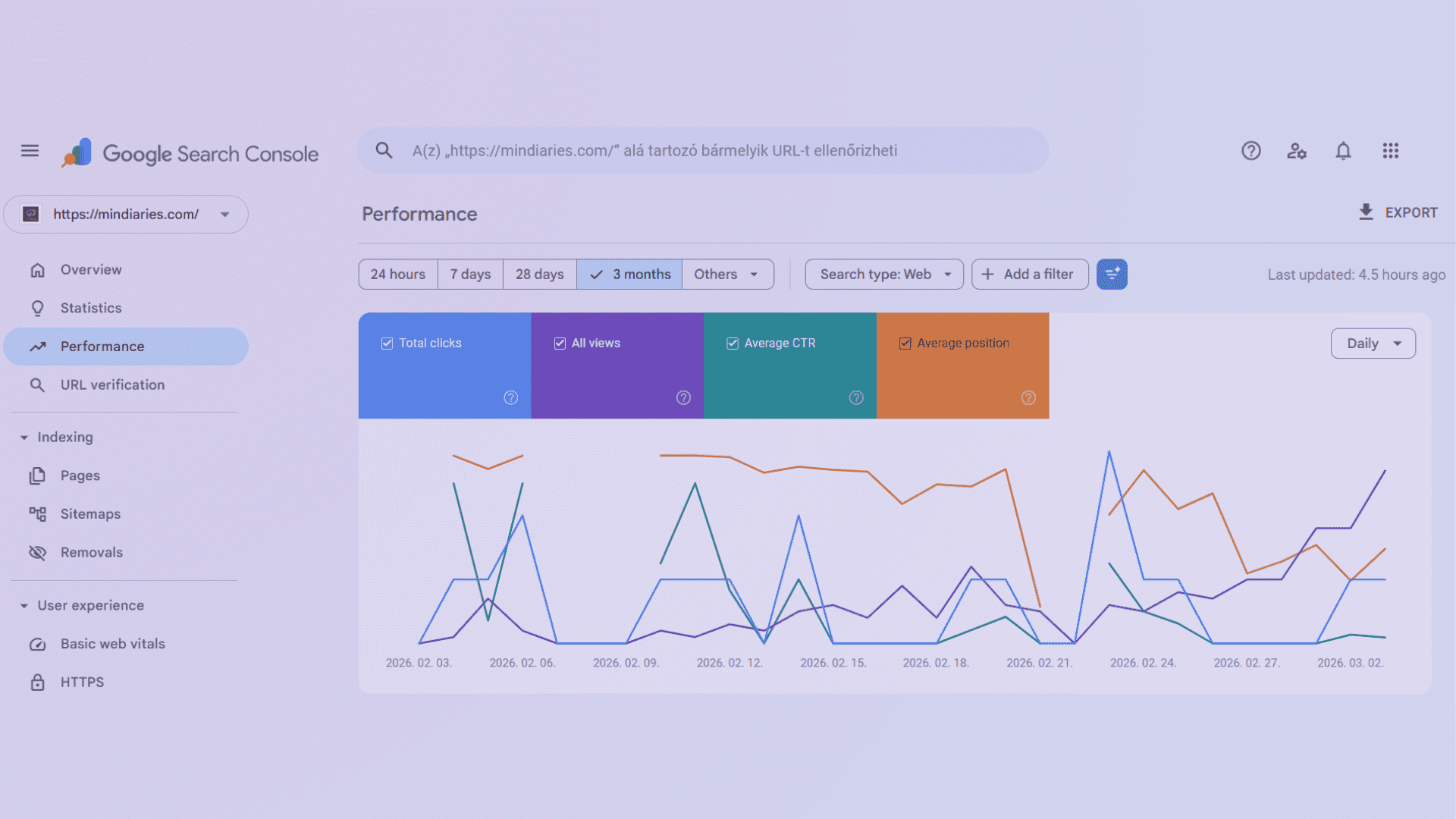
Google Search Console – Performance

At the top of the Performance report you'll see the four main metrics. The default time period is the last 3 months. You can change this to 16 months, or compare different time periods.

Clicks
How many times users clicked on your site from Google's results list. This is the number that actually becomes traffic - your organic visitor count.
Impressions
How many times your site appeared in Google results. It counts even if the user didn't click. High impressions + low clicks = weak title or description.
CTR (Click-Through Rate)
Shows the ratio of clicks to impressions as a percentage. If you got 5 clicks from 100 impressions, the CTR is 5%. The average CTR for the first position is around 25-30%.
Average position
Your site's average ranking in Google results for a given keyword. 1.0 is the best, a value above 10 means you don't appear on the first page. Important: this is an average across all pages, not a fixed position.
When is the data not fully accurate?

GSC data is not 100% precise. This is not a bug. A few known limitations: (1) Keywords with fewer than 10 impressions don't appear in the list, (2) Personal search history affects positions, (3) Data typically updates with a 2-3 day delay. It's excellent for trend analysis, but don't expect perfectly exact numbers.

What to do first in GSC?

If you've just verified your website, here's the recommended order to follow:

1
Submit your sitemap

Go to Indexing > Sitemaps and paste in your sitemap URL (usually: yourdomain.com/sitemap.xml). This helps Google find and index all of your pages.

2
Check indexing errors

Go to Indexing > Pages. Check whether there are any pages Google hasn't indexed, and if so, what the reason is. The most common reason: "Discovered - currently not indexed" - this means Google knows it exists but hasn't shown it yet.

3
Review the Performance report

If your site isn't brand new, in the Performance report you can already see which keywords you appear for. Filter to pages in positions 3-10 - these are the ones most easily pushed up through content optimization.

4
Connect with Google Analytics 4

Under Settings > Associations you can connect GSC to GA4. After that, you'll also see search data in GA4, giving you a much more complete picture of your visitors.

Google Tools Series

This is the first article in a multi-part series

In the mindiaries.com Google Tools series, after GSC comes complete guides to Google Analytics 4, Google Business Profile, Google Ads, Google Tag Manager, and Google Trends. Every article with the same level of detail, data, and screenshots - so you actually understand what you're doing, not just copying steps.

🔍
mindiaries.com Find all our articles about Google tools here.
→

Frequently asked questions

What is Google Search Console?
Google Search Console (GSC) is a free tool provided by Google that shows you how Google sees your website: which keywords you appear for, how many clicks you get, what technical errors exist, and whether your pages are indexed in the search engine.
Is Google Search Console free?
Yes, Google Search Console is completely free. There is no paid version - all features are available with a simple Google account.
How long does it take for data to appear in Google Search Console?
The first data usually appears within 2-3 days after verification. If your site is completely new, you may need to wait a few weeks for meaningful data, because Google first needs to process and display your pages.
What's the difference between GSC and Google Analytics?
GSC shows you what happens before someone clicks on your site: impressions, positions, keywords from Google search. Google Analytics shows what happens after a visitor arrives on your site: how long they stay, what they click, where they leave. The two tools complement each other - they don't replace each other.
How many websites can I use Google Search Console for?
There is no limit. You can add an unlimited number of websites (properties) to one Google account in GSC. Equally, one website can be assigned to multiple Google accounts with different permission levels.
What is Domain property vs. URL prefix - which should I choose?
Domain property (e.g. example.com) is the recommended option: it covers the entire domain, including the www and non-www versions, and all subdomains. URL prefix (e.g. https://www.example.com) covers only a specific URL. If you don't have a particular reason to choose URL prefix, use Domain property.

Useful external resources

Official documentation and further reading: Google Search Console official help - GSC developer documentation - Open Search Console

Tags: GoogleGoogle Search Console
Previous Post

Per Aspera Ad Astra – Blackbox 01

Next Post

Website image size – The complete system of website image optimization and sizing architecture in 2026

Related Posts

Complete SEO strategy 2026 planning board on a modern desk
Marketing and Media

The best SEO strategies in 2026 – 7 steps for succes

Home› Tech & SEO› SEO Strategy 2026 Tech & SEO SEO Strategy 2026: The 7...

by sz_admin
March 11, 2026
Load More
Next Post
Website Image Size | Weboldal képméret | Dimensiuni imagine website - Performance

Website image size - The complete system of website image optimization and sizing architecture in 2026

Per Aspera Ad Asta - Axa Rendl

Per Aspera Ad Astra - Black Box 03

SEO and GEO - Generative Engine Optmization

Is SEO dead? In 2026, SEO + GEO integration is completely rewriting the rules of digital visibility!

Leave a Reply Cancel reply

Your email address will not be published. Required fields are marked *

Newsletter

@Instagram

    Go to the Customizer > JNews : Social, Like & View > Instagram Feed Setting, to connect your Instagram account.

Welcome!

This is where creativity, ideas, and inspiration meet. From marketing to mental health, from books to beauty -explore the topics that move the world and shape the way we think. Find solutions for your projects and motivation for everyday life with us!

Categories

  • Marketing and Media
  • Reading Corner
  • Movies & Books
  • Finance
  • Society
  • Mental Health
  • Pop Culture
  • Beauty
  • Contact

Privacy policy

Terms and conditions

Cookie Policy

ANPC - SAL
ANPC SOL

© 2026 Mindiaries - All rights reserved

Welcome Back!

Sign In with Facebook
Sign In with Google
OR

Login to your account below

Forgotten Password?

Retrieve your password

Please enter your username or email address to reset your password.

Log In
No Result
View All Result
  • Marketing and Media
  • Reading Corner
  • Movies & Books
  • Finance
  • Society
  • Mental Health
  • Pop Culture
  • Beauty
  • Contact

© 2026 Mindiaries - All rights reserved